-
For details about the setting screen, refer to the setting guide.
 M.25.3.3 Peripheral Settings - Check network
Perform self-diagnosis on devices that failed communication when connected to the master CANopen network.
Check the communication status of the entire network.
Check the status of the entire network during CANopen communication.
For details about the setting screen, refer to the setting guide.
M.25.3.3 Peripheral Settings - Check network
Enter offline mode and touch [Peripheral Settings] in the item change over buttons.
From the [Peripheral Settings] screen, touch [I/O Driver] and then [CANopen Driver].
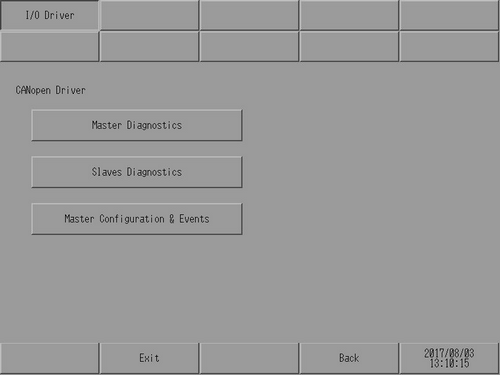
[I/O Driver] screen opens. Touch [Master Configuration & Events].
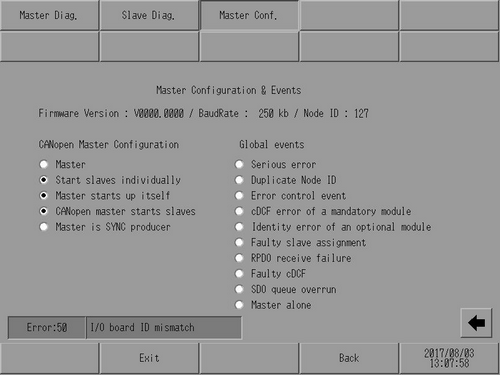
[Master Configuration & Events] screen opens. Use the lamps to confirm the network's [CANopen Master Configuration] and [Global events]. (Example, CANopen Master Configuration: [Master], [Start slaves individually], [Master starts up itself], [CANopen master starts slaves], and [Master is SYNC producer]. Global events: [Master alone
See the following for [CANopen Master Configuration] and [Global events] details.
M.25.3.3 Peripheral Settings - Check network
Can the master side receive data?
The master side may be unable to perform communication.
Use the following procedure to check the master side and determine the problem:
For details about the setting screen, refer to the setting guide.
M.25.3.1 Peripheral Settings - Master diagnostics
Enter offline mode and touch [Peripheral Settings] in the item change over buttons.
From the [Peripheral Settings] screen, touch [I/O Driver] and then [CANopen Driver].
From the [I/O Driver] screen, touch [CANopen Master Diagnostics].
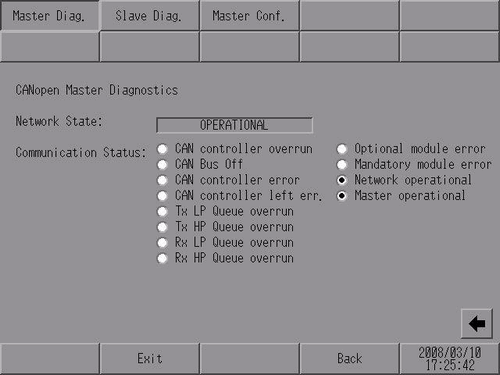
[CANopen Master Diagnostics] screen opens. Check the [Network State] and [Communication Status]. (Example, Network State= [OPERATIONAL], Communication Status= [Network operational], [Master operational] indicates that the master is operating normally. For details on [Network State] and [Communication Status], refer to the following.
M.25.3.1 Peripheral Settings - Master diagnostics