
-
Please refer to the Settings Guide for details.
 22.9.1 D-Script/Common [Global D-Script] Settings Guide
 -
See the following for further information about script commands.
22.11 Built-In Function (Instruction) / Conditional Expressions
Please refer to the Settings Guide for details.
22.9.1 D-Script/Common [Global D-Script] Settings Guide
See the following for further information about script commands.
22.11 Built-In Function (Instruction) / Conditional Expressions
Set up the script settings to use Extended Script to communicate. From the [Project (F)] menu, click [System Settings (C)] and select [Script]. Make sure to set the [Type] to [Extended Script].
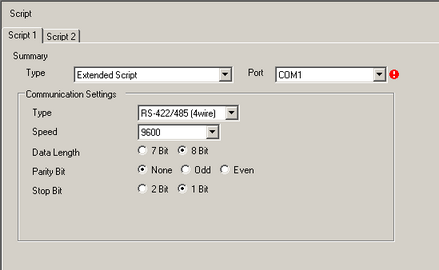
There are two tabs for the script settings. The above example uses the [Script 1] tab.
Set the [Communication Settings] to match the Extended SIO.
From the [Common Settings (R)] menu, select [Extended Script (E)].
When the following message appears, "The Extended Script will be enabled. Continue?" Click [Yes].
Register INIT as a user-defined function. Click the [Function] tab and click the user-defined function frame's [Create] button.
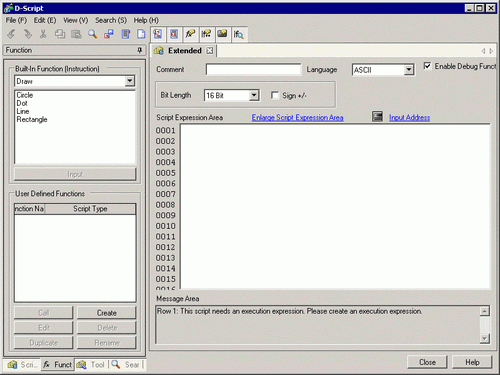
Input [INIT] as the function name, click [OK]. The following screen appears.
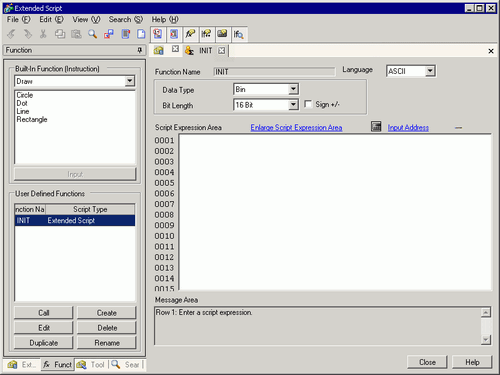
Create a script in the Expression Area with Commands, Statements, and Constant input.

Register PINIT as a user-defined function. Enter [PINIT] as the function name and create the following script in the Expression Area.
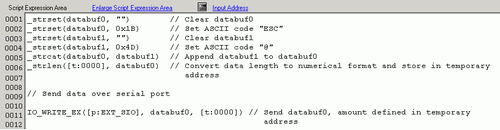
Register Strset as a user-defined function. Enter [Strset] as the function name and create the following script in the Expression area.
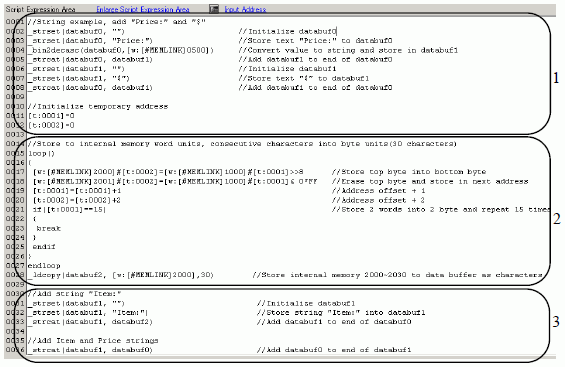
Register Print as a user-defined function. Enter [Print] as the function name and create the following script in the Expression Area.
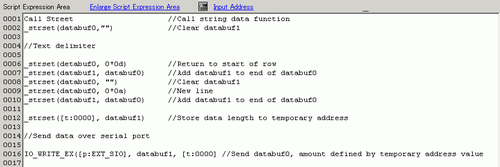
Create the main script. Create the following script in the Expression Area to complete the script.
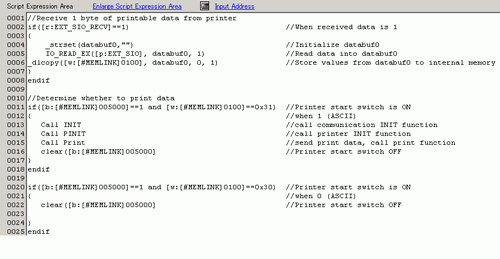
When placing the user-defined functions created in steps 3 to 9 into the main script, select the function to be placed and click [Call] on the [Function] tab. The function will be placed using "Call Function Name".
When a string is selected, use the CTRL and SHIFT keys in combination with the arrow keys [→], [←] to select to the end of the text.
Press CTRL+[F4] to close the current screen.
Press the [Esc] key to overwrite and save the script or to exit without saving.